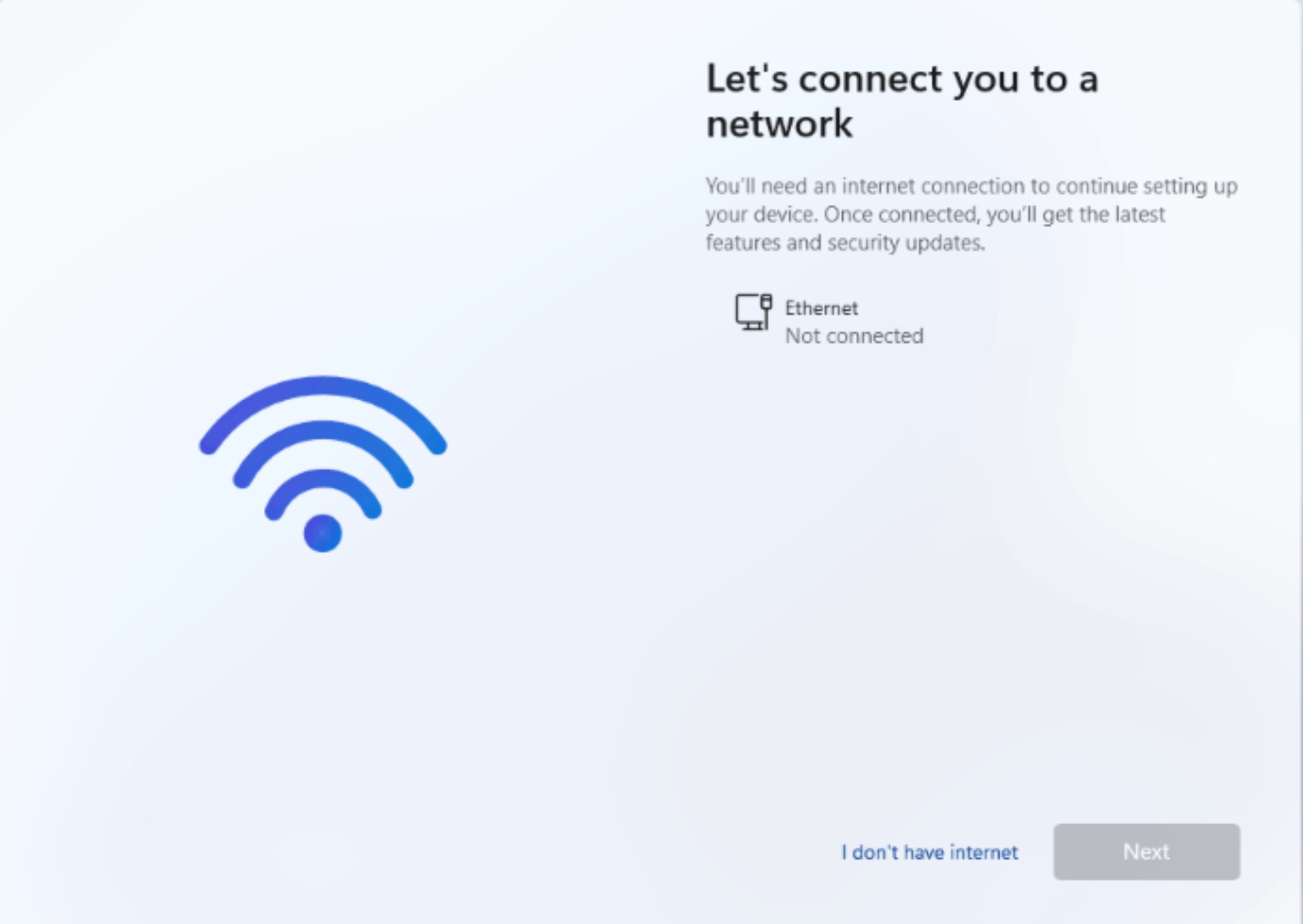
Microsoft wants users to connect to a Microsoft account when you purchase a new Windows 11 desktop or laptop or when you do a fresh install of Windows 11. The Out-Of-Box Experience (OOBE) makes it difficult to continue setting up the machine without an internet connection. They removed the "Do not connect to the internet" button. But here's a way to bypass this and create a local user or local admin account.
Just go through the regular set up of the Out-Of-Box Experience (OOBE) by selecting your Region and then Keyboard input. On the third screen, it asks you to connect to the internet. To bypass this:
- Press Shift+F10 on your keyboard. This will pull up a Command Prompt.
- In the command prompt, type:
oobe\bypassnro- Hit the Enter key
Your computer will restart and ask you to go through the OOBE again but when you get to the connect to the internet screen, it shows you the "I don't have Internet" button. Click that and then click on "Continue with limited setup" and you can create your local admin account from there.
If in case you already entered the WiFi password or are plugged into the network,
- Press Shift + F10 to open a command prompt (works even mid-OOBE).
- Type:
start ms-cxh:localonly(This works on current Win11 23H2/24H2 builds and doesn't require you to disconnect your wifi — it just forces the "I don't have internet" / local account path.)
- It'll reload that screen and let you set up a local account instead of an MSA, keeping your wifi connection intact.